Free Fire Camera System Guide: What It Is & How to Use It Like a Pro
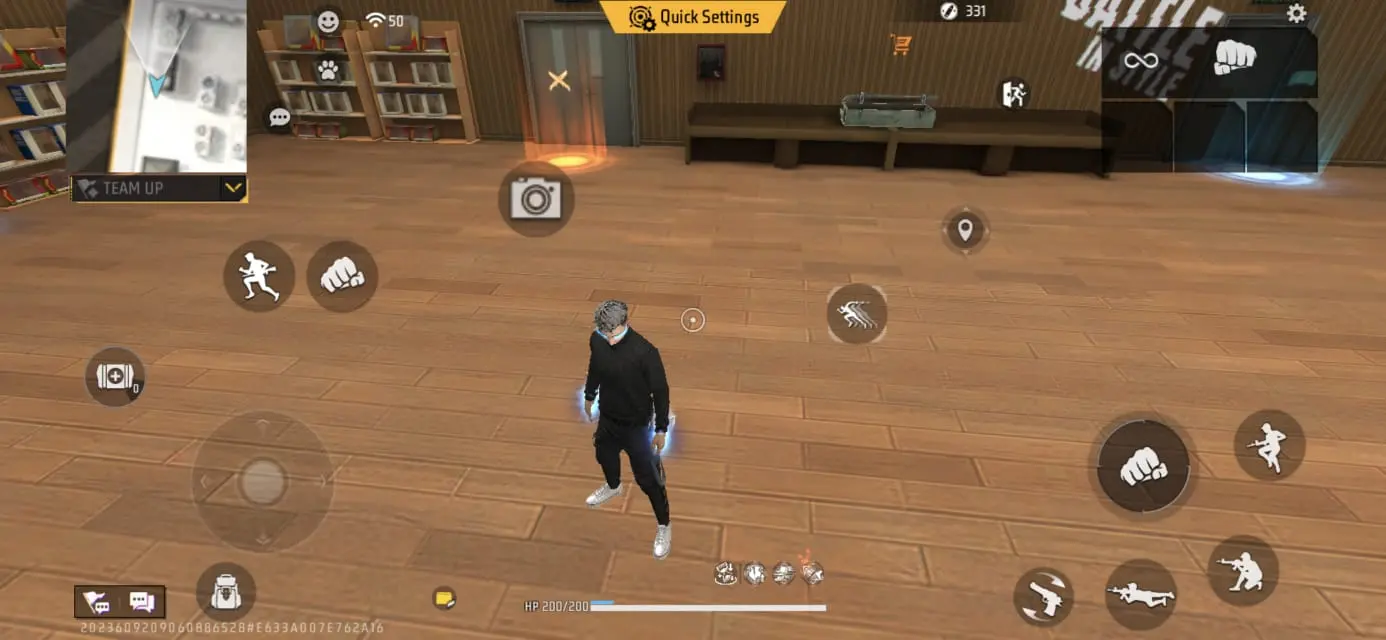
Have you updated your Garena Free Fire game to the new OB52 update and seen a camera icon in the HUD while playing in-game matches? Then, you are not alone, because many players have also seen this and don’t know about the Free Fire Camera filters system.
So, don’t worry because in this article, we are going to share A to Z information about it and also tell you how you can use the camera system in Free Fire. So, are you ready? Let’s get started now.
Free Fire Camera System: Unlock New Features In Battle Royale
Garena Free Fire is one of the games that brings new updates to surprise players, and it happens often. Recently, we saw the Jujutsu Kaisen collaboration, and it got massive love from the players because Jujutsu Kaisen is one of the most popular anime manga series that has millions of followers worldwide. That’s why Free Fire always brings these types of updates to make the game alive. In this update, new Camera System filters are also available.
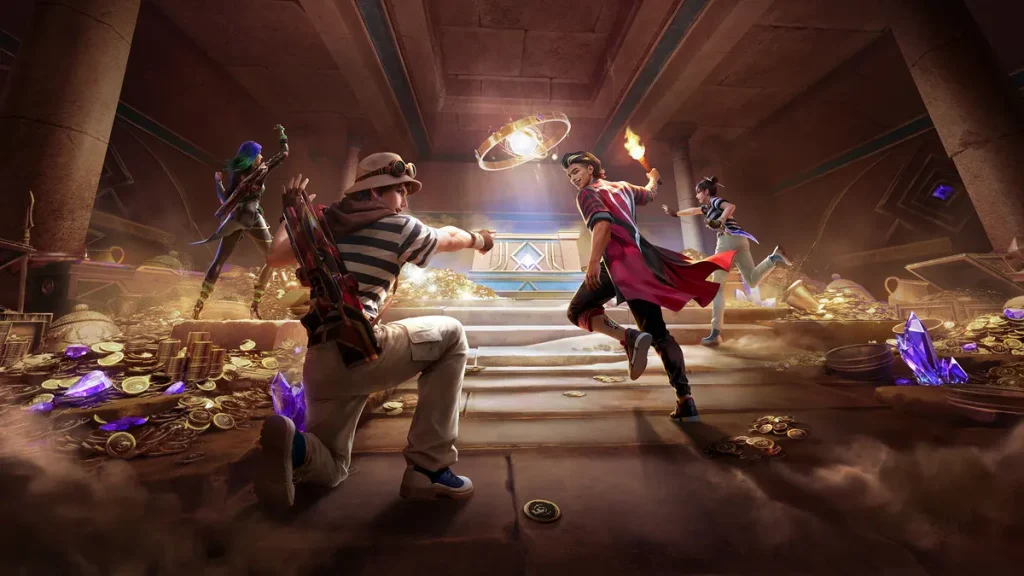
Once the new Free Fire Camera System filters were added to the game, many players didn’t know how to use them. But slowly, they came to know, and it became popular in the game. Nowadays, more FF players are using the new camera system to capture golden memories while playing in-game matches.
What is the Camera System In Free Fire?
The Camera System is a tool through which players can capture unforgettable memories while playing in-game matches like Classic, BR-Ranked, Clash Squad Ranked, or even on the Training Ground using different camera filters.
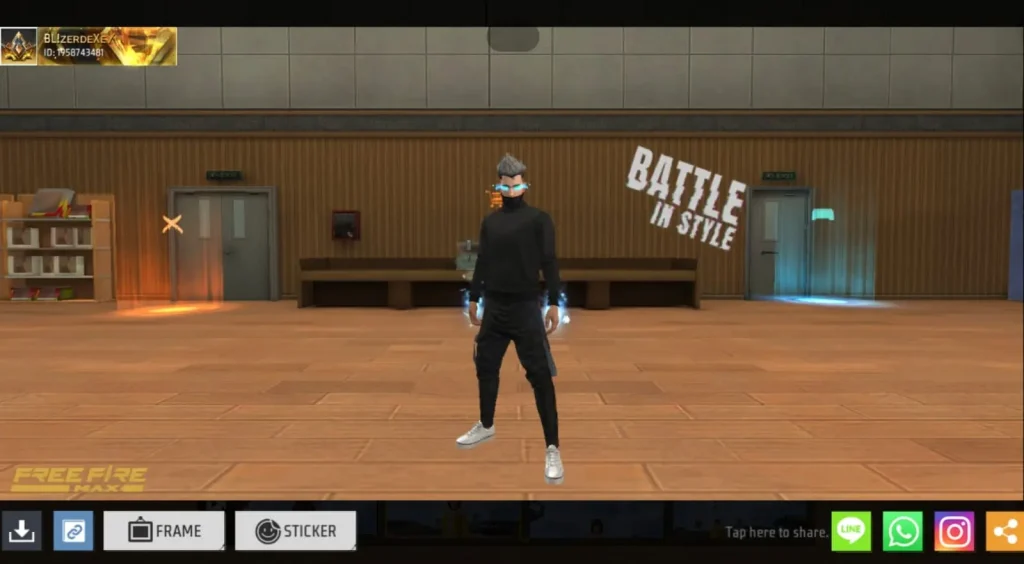
After taking snapshots, it will show the captured moment picture that players can download by tapping on the bottom left corner “download icon” to save it on their mobile device, which they can also share on social media and with their friends. Also, there are different types of tools available in this Free Fire Camera System, like Camera Lock, Character Lock, and more.
Also Read: How Does The Jujutsu Kaisen Cursed Energy Work in Free Fire OB52?
How the Camera System Works in Free Fire
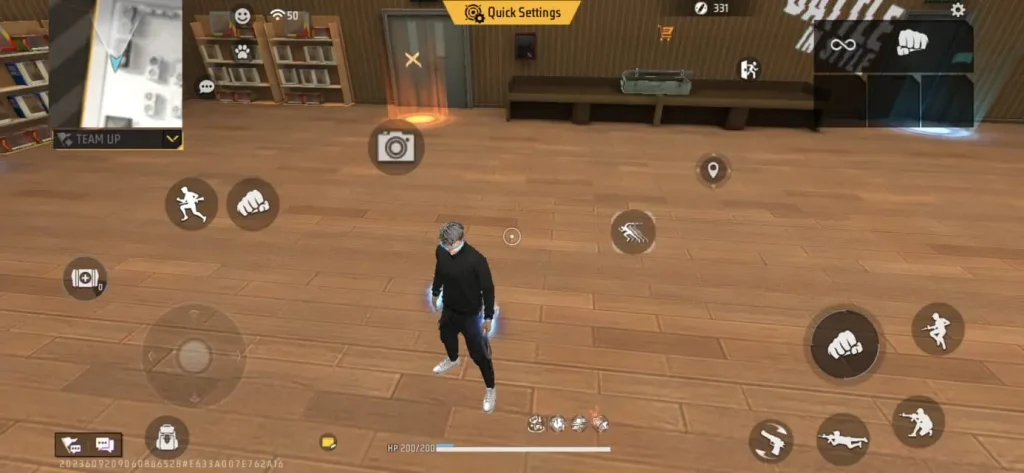
The working process of the Free Fire Camera System is very simple. Once you start playing in-game matches like BR-Ranked, Classic, or even on the Training Ground, you will see a “Camera Icon” in your custom HUD as shown in the picture below.
Once you tap on it, different types of camera filters will open, like Front Far Shot, Back Far Shot, Front Top Shot, and many more. So, you can choose one as per your requirement and click on the “Camera Icon” again, which will show on the right-hand side.
After that, the snapshot will be shown to you, which you can download and also share on social media platforms in one click.
Beginner’s Guide To Use Camera System In Free Fire
If you are a newbie and don’t know how to use the new camera system in Free Fire or Free Fire Max, then follow the step-by-step guide below:
Play In-Game Matches Or Training Ground
- First of all, you have to play in-game matches like BR-Ranked, Classic, or even on the Training Ground.
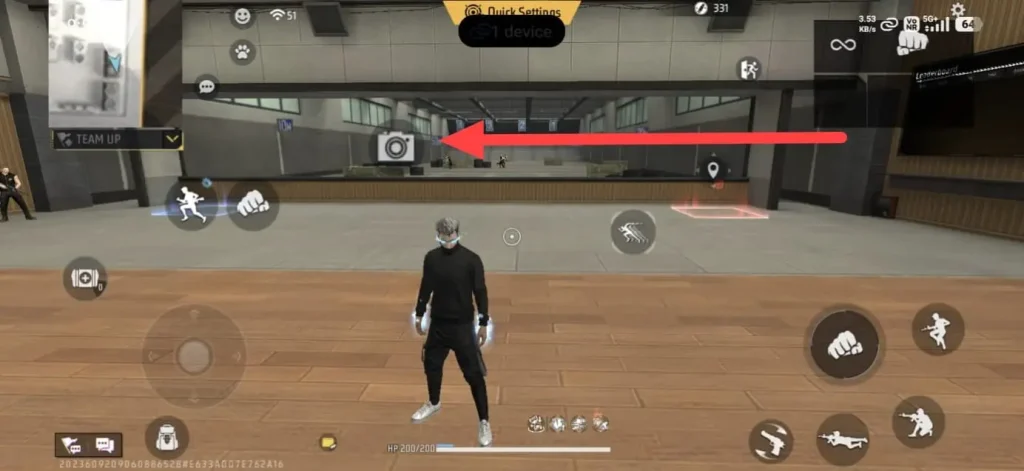
- After that, you will see the Camera Icon in your custom HUD. So, tap on it.
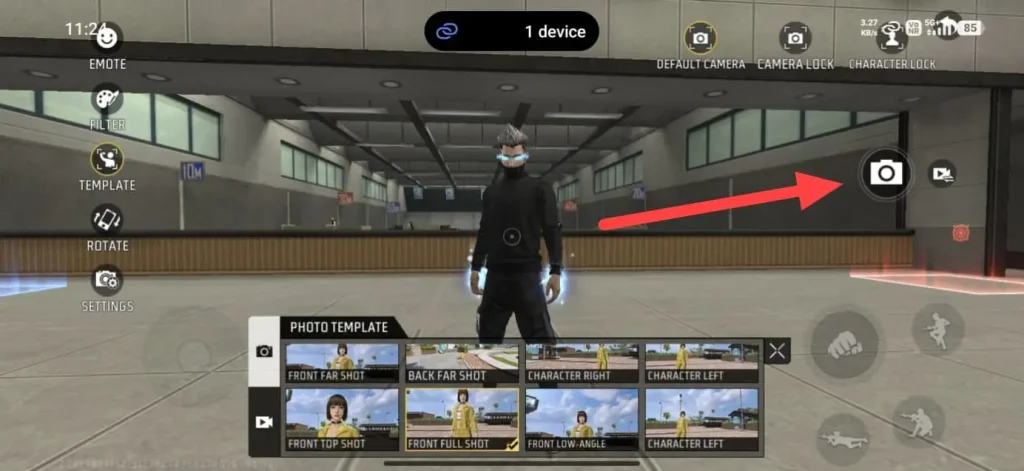
- Different types of filters will open. So, choose as per your requirement and again click on the right corner Camera Icon.
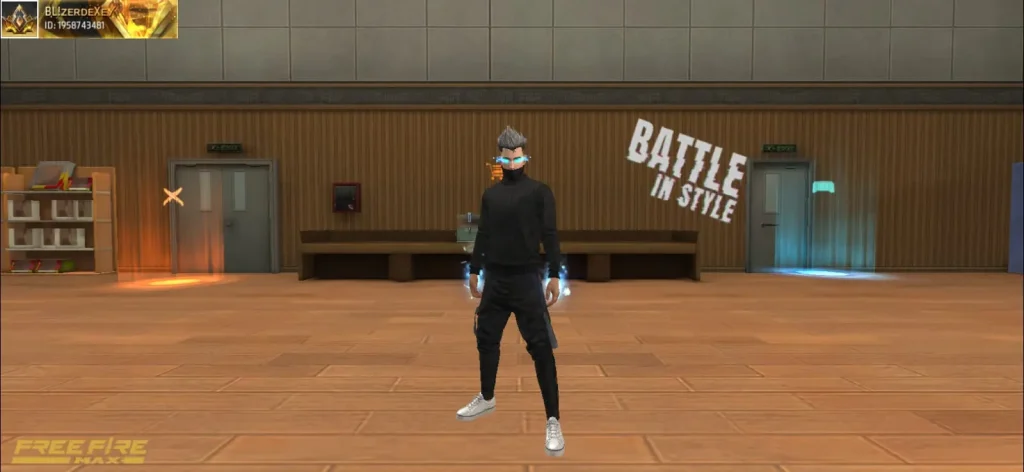
- The captured moment will be shown to you, which you can download after tapping on the bottom left corner “download icon.”
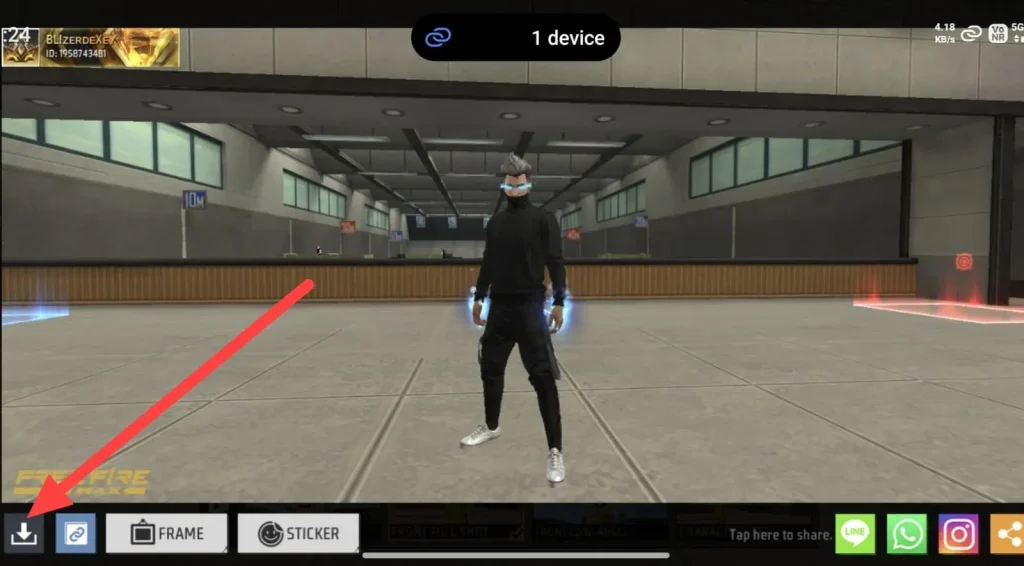
- After that, the image will be saved on your mobile device.
All Free Fire Camera Filters
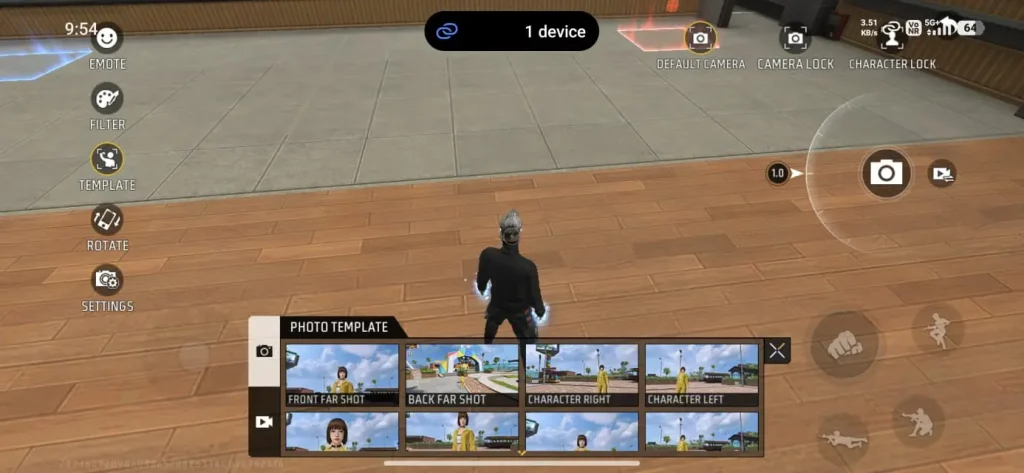
All Photo Templates
- Front Far Shot
- Back Far Shot
- Character Right
- Character Left
- Front Top Shot
- Front Full Shot
- Front Low Angle
- Character Left
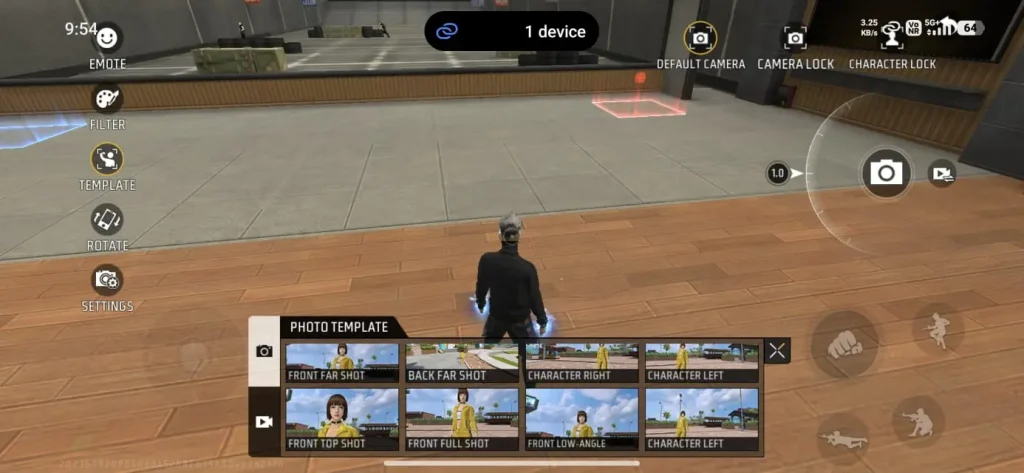
Free Fire Other Camera System
There are also two different tools available in the Free Fire Camera System that are mentioned below. Take a look below to know about them as well.
Camera Lock
In this section, players will be able to lock the camera position.
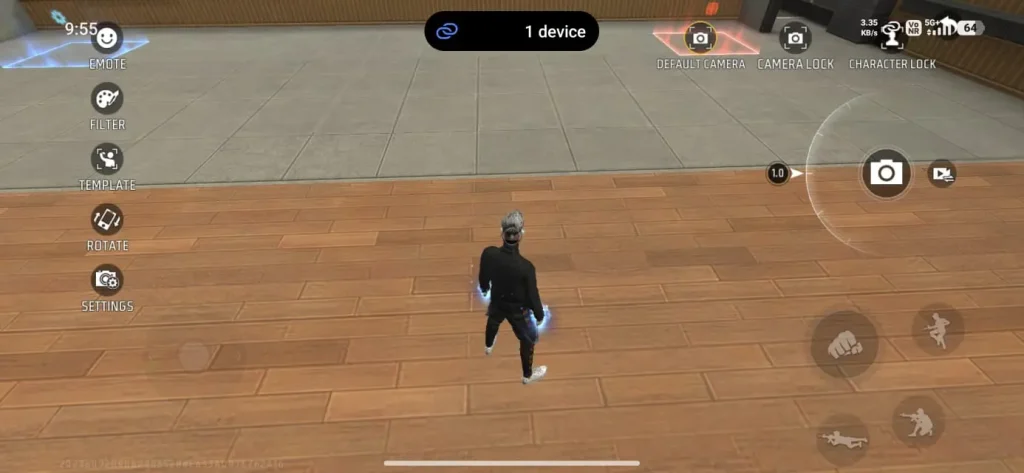
Character Lock
Using the Character Lock feature of the Free Fire Camera System, you can lock your character at a specific position after adjusting it from the line.
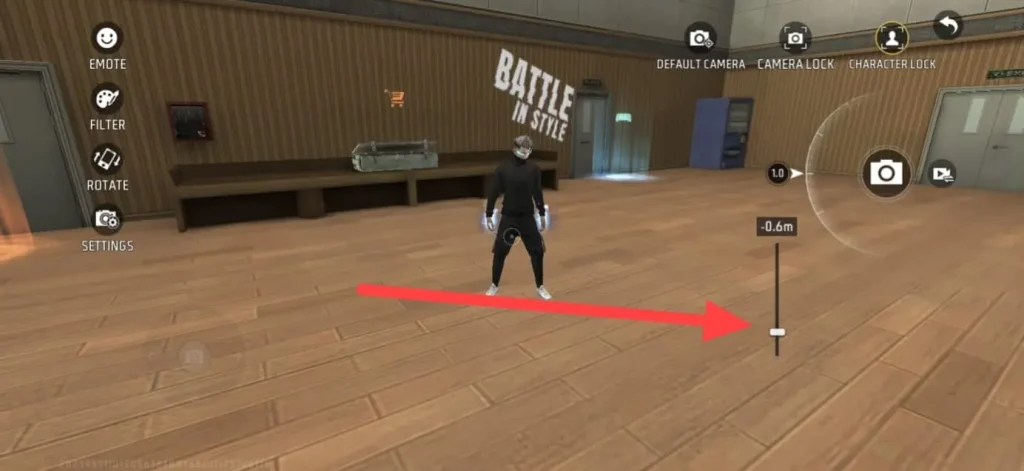
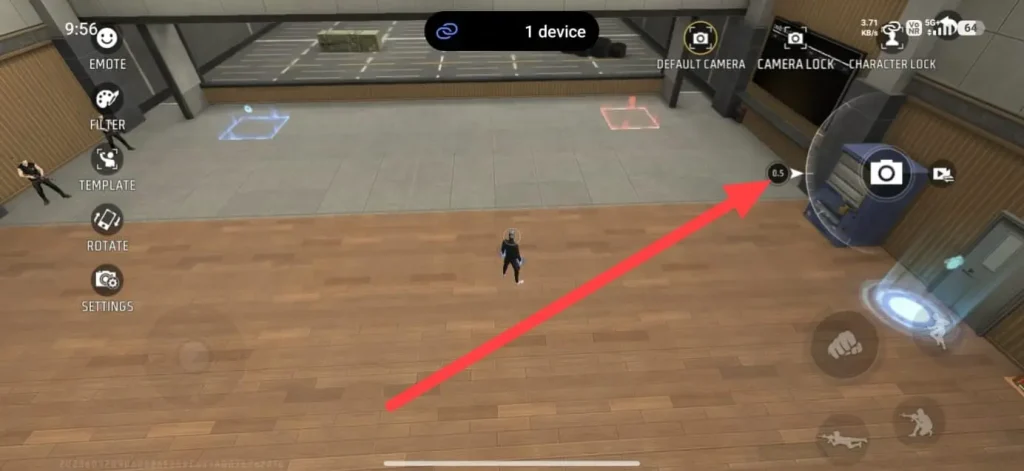
Free Fire Zoom-In or Zoom-Out Features of the Camera System
The Zoom-In or Zoom-Out features of the Camera System in Free Fire are very popular because, by using this, you can spot the enemies’ location while playing in-game matches.
Amazing Filters of the Camera System In Free Fire
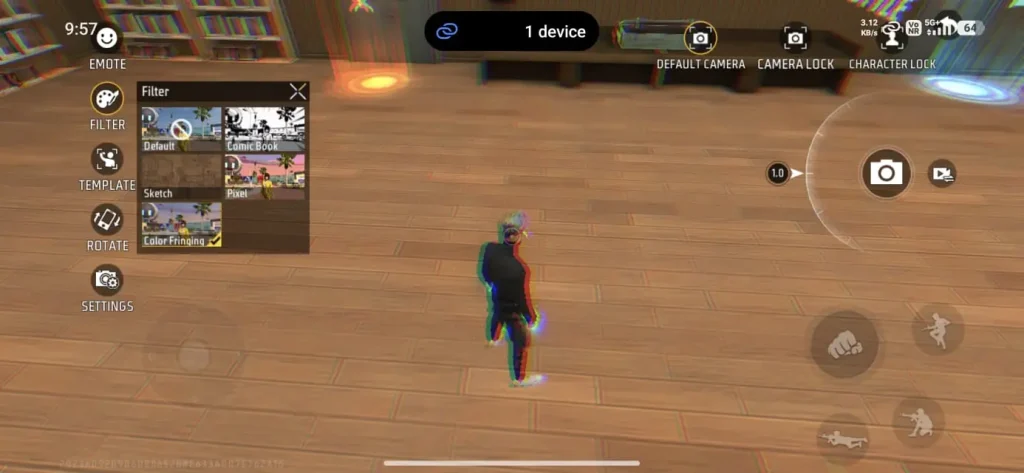
This section of the Camera Filters system is also more amazing, in which you can change your battlefield background into different styles. Take a look below to know all of the available styles now:
- Default
- Comic Book
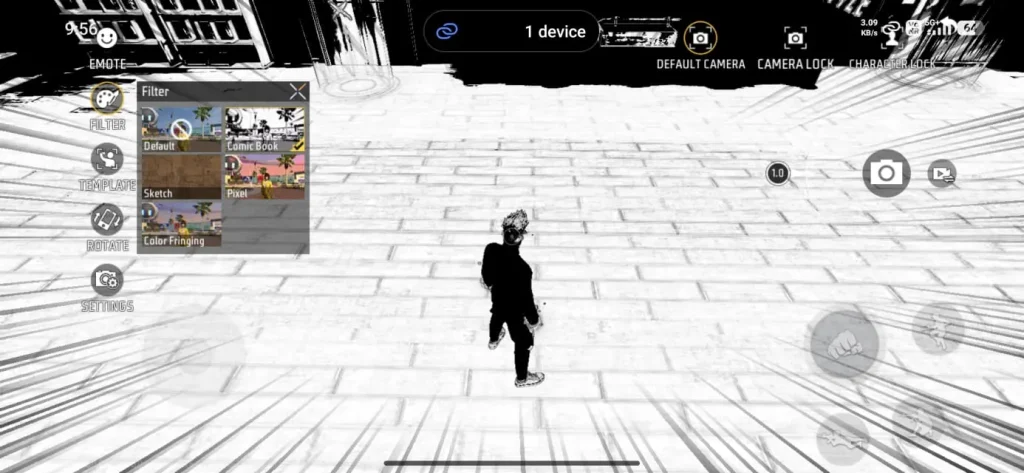
- Sketch
- Pixel
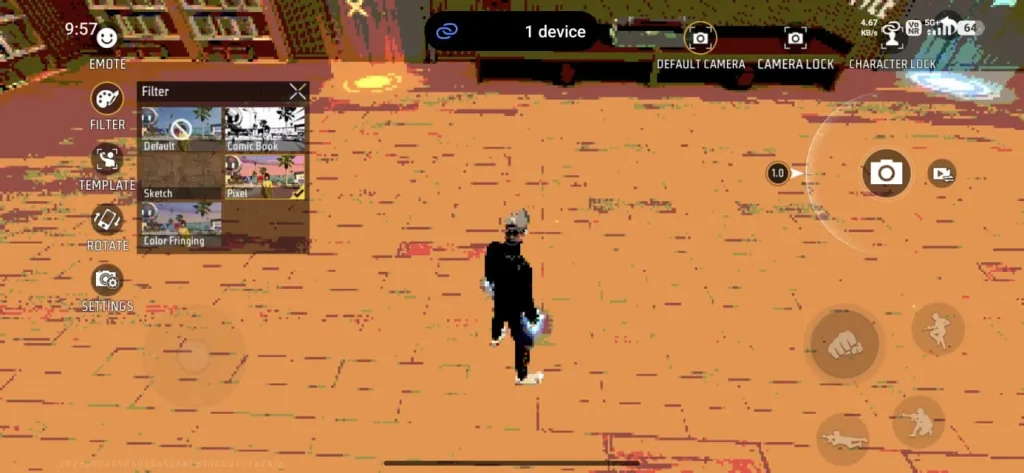
- Color Fringing
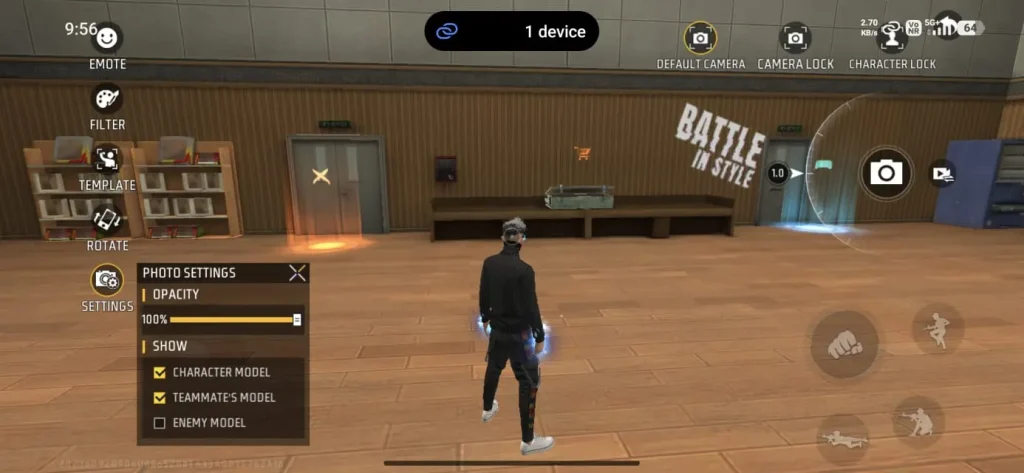
Settings of the Camera System
Using the settings option, you can choose opacity and also decide which model will be shown, like the character model, the teammates model, or the enemy model. You can enable or disable them as per your requirement.
Benefits of the Camera System in the Free Fire Game
There are many features introduced in the Garena Free Fire game after the OB52 update. But the Camera System is one of the coolest sections that is loved by thousands of players. Using this, players are able to capture memories in different styles, and also, they are now able to change the battleground background into different styles like Pixel, Comic Book, Sketch, and others.
That’s why the Free Fire Camera System update is more interesting, and every player should try this.
Conclusion
The Free Fire New Camera System has added a new style to the game through which players are able to capture their unforgettable memories with friends while playing in-game matches like Classic, Solara, BR-Ranked, or even on the Training Ground. That’s why it’s getting popular in the community, and more players are searching to know about this to use it in their accounts.
So, follow the above-mentioned guide and use the new Camera System in your Free Fire account to save memories of the mobile battle royale game.